How to install Blooply
Five short steps, from the email in your inbox to a running app. No technical knowledge needed, and nothing here can break your computer.
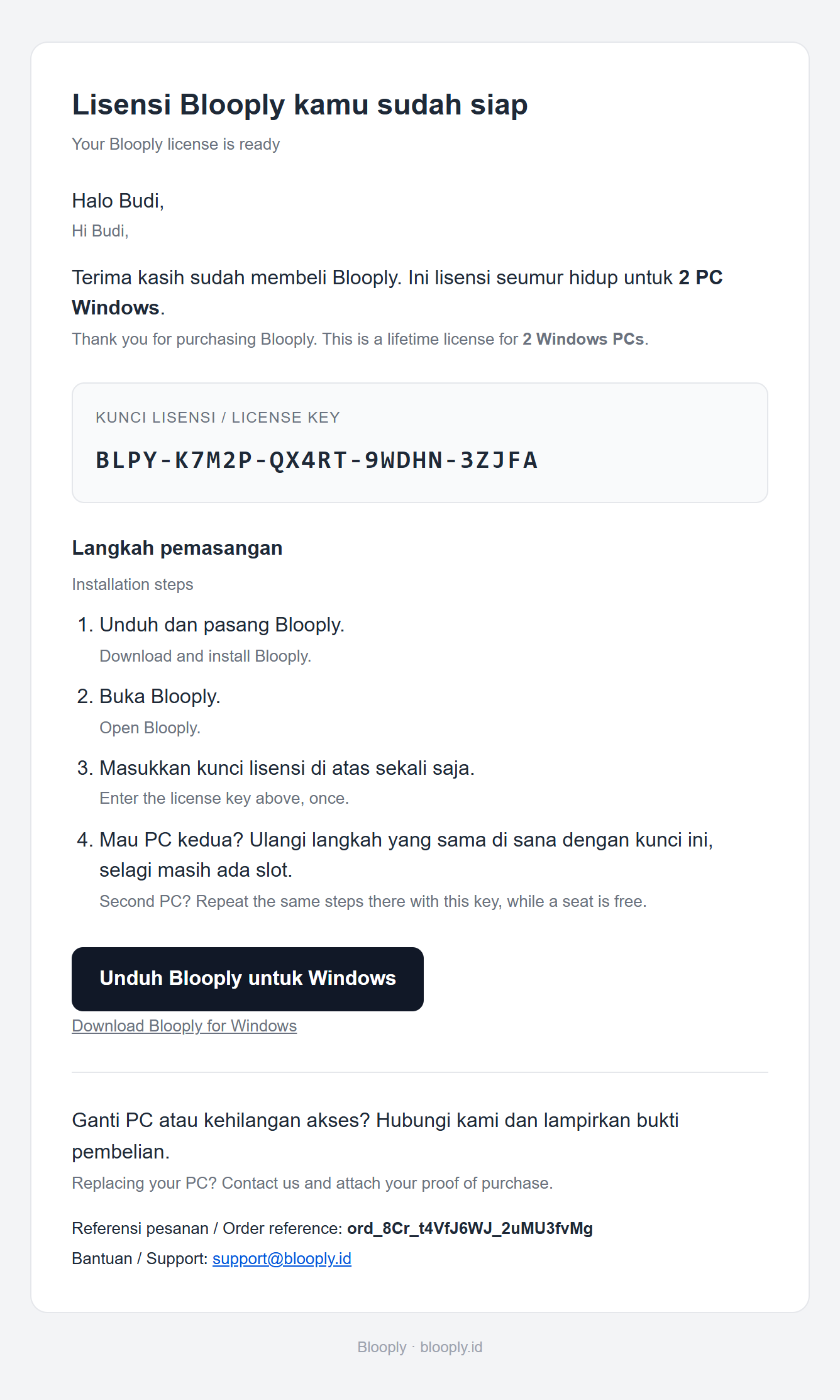
Open your purchase email
Your license key arrives by email, sent to the address you used at checkout. The subject line reads “Lisensi Blooply kamu / Your Blooply license”.
If it is not in your inbox, look in the Spam, Promotions or Updates folder — delivery filters file it there more often than you would expect.
Still nothing after ten minutes? Email [email protected] and we will resend it.
Click the download link
In that same email, click the button labelled “Unduh Blooply untuk Windows / Download Blooply for Windows”. Your browser saves one file called BlooplySetup.exe, a little under 600 MB.
Most browsers put it in your Downloads folder without asking. If yours asks where to save it, anywhere you can find again is fine — Desktop is the easiest.
If the download stops partway or the file is only a few kilobytes, the connection dropped. Delete the file and download it again — a half-finished download cannot be installed.
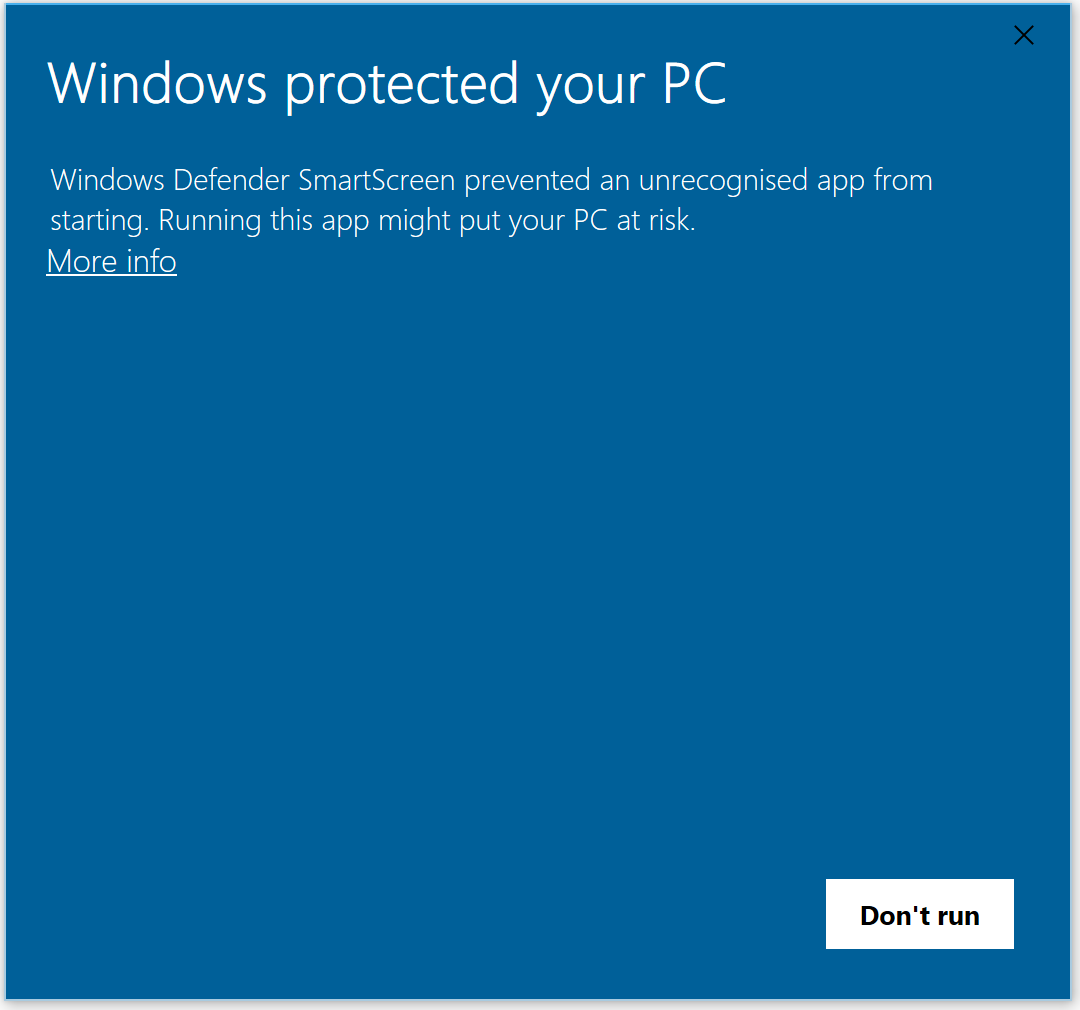
If Windows says “Windows protected your PC”
On a computer that has never run Blooply before, Windows Defender SmartScreen blocks the installer the first time and shows the window below. This is expected, and it is not a virus warning.
SmartScreen only knows an app once enough people have run it. A brand-new release has no history yet, so Windows asks you to decide. The same window appears for most new software from small publishers.
- Click More info — the window opens up and shows one more line.
- Click Run anyway — that is the button that lets the installer start.
You only do this once per computer. Windows remembers your choice, and the next version you install may not ask at all.
Run the installer
Double-click BlooplySetup.exe. The setup wizard opens. Click Next on each screen — the folder it suggests, C:\Program Files\Blooply, is the right one, so there is nothing to change.
Installation takes a minute or two. When it finishes, click Finish and Blooply opens on its own.
Windows may also ask “Do you want to allow this app to make changes to your device?”. Choose Yes — writing into Program Files needs that permission, and it is the same prompt every installer shows.
Enter your license key
The first time Blooply opens it asks for your license key. Go back to the purchase email, copy the key, paste it into the field and click Activate.
That is the whole setup. The app stores the key, so you never type it again on this computer.
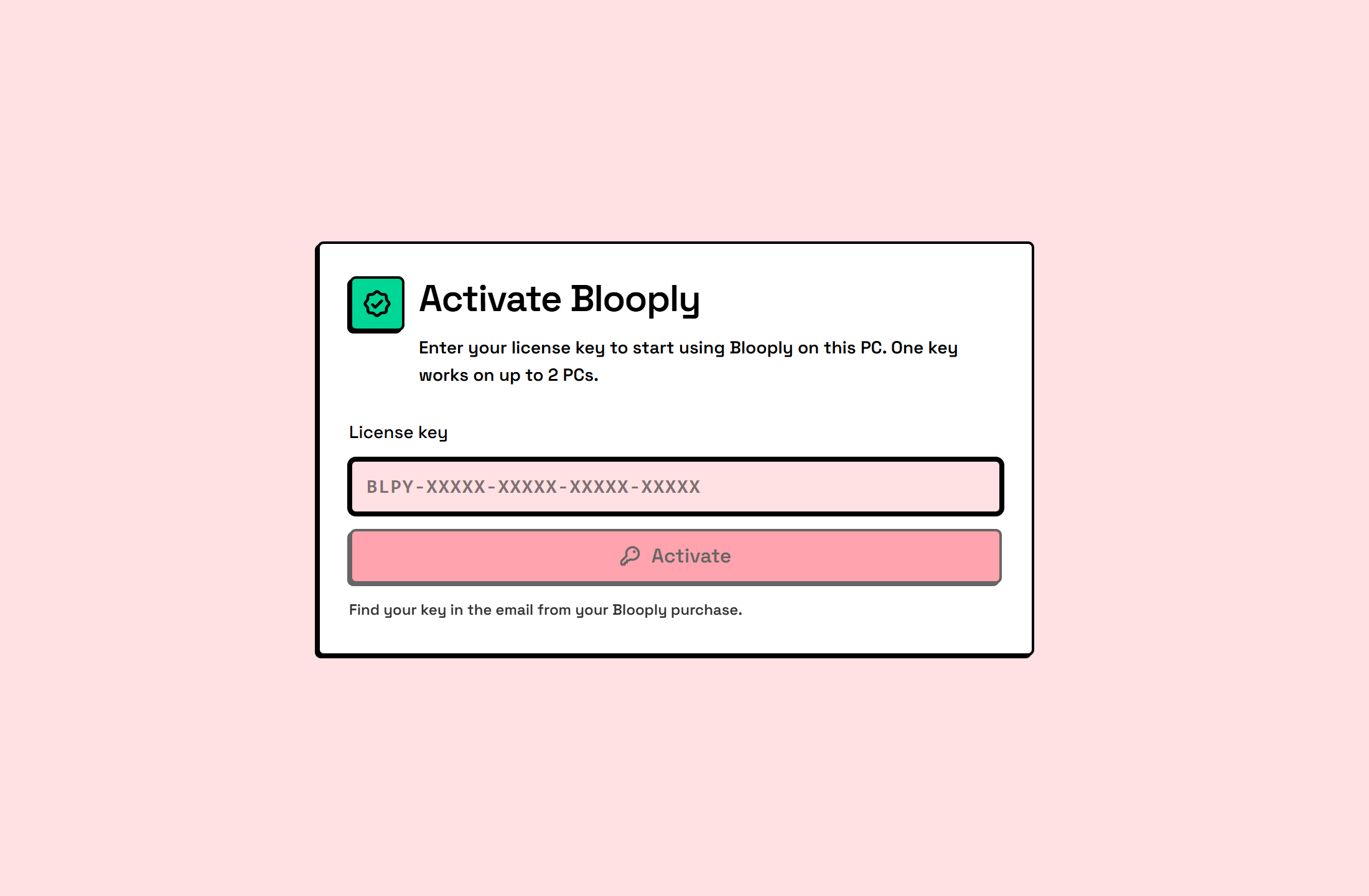
Copy the key whole, dashes included. A partial paste is the most common reason activation fails. One key covers up to 2 Windows PCs.
Stuck on a step?
Tell us which step you reached and attach a screenshot of what you see, at [email protected]. We answer on business days.
Include the email address you bought with so we can find your order faster.